I have two printers attached to my Windows 11 system, a farily standard A4 Epson printer and an 80mm Bisofice Thermal Receipt Printer. I am trying to print a UTF-8 formatted text file using PowerShell, but for testing purposes, I have also opened the file in NotePad and printed it using the “File/Print” menu.
Using Notepad prints the file as expected to both printers - wrapping and the size /quality of the text is as expected.
However, when I use the following PowerShell command, I get differently formatted output on the receipt printer (but the A4 printer is as expected, aligned with the Notepad printed version).
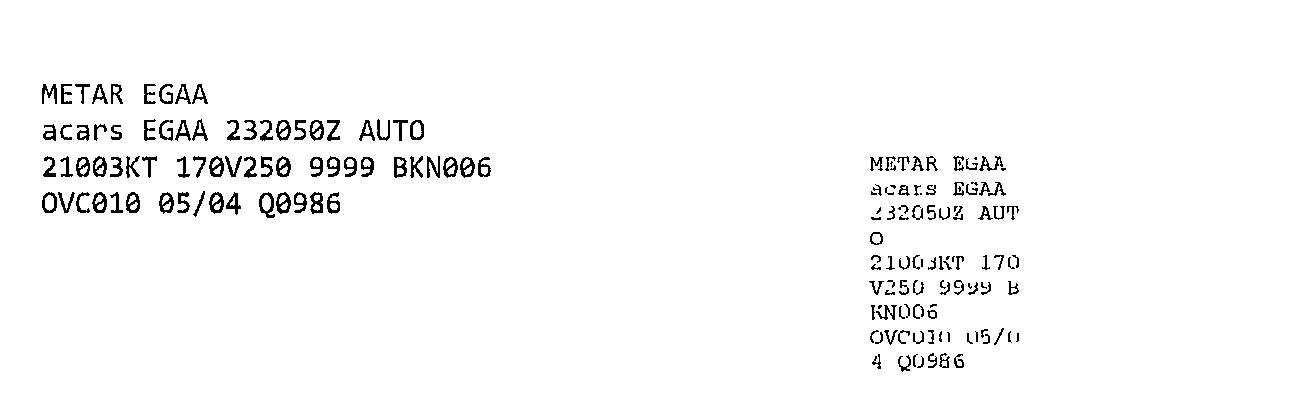
The following image shows the output I get on the receipt printer when using Notepad to print (the expected output, on the left) and that from the Powershell (the smaller, narrower print on the right).
As you can see, the wrapping has changed (there are now very wide margins), the size of the text is smaller and the quality of the print is much lighter.
Any ideas how to get the output on the left using PowerShell similar to the line above? I am aware that it is possible to run Notepad within Powershell and print the file (which does give the correct output) but you see Notepad appear on the screen momentarily and in the context this is being used, that is far from ideal!
The printing width on that printer is limited to 72mm (about 2.8”). I’d expect the wrapping to be different to that on a printer with a much wider printing width.
Having the line width limited to something like “X” characters by the program that creates the file would be the easiest way to deal with this.
The Out-Printer doesn’t do any formatting, it just sends the data to the printer. The printer you’re using is just a dot matrix printer. You can choose to use either Font A (~42 - 50 characters per line) or Font B (about ~56 - 60 characters per line).
Why you’re seeing line wrapping at about 10 or 11 characters I don’t know.
I’m using Out-String as it is in the code I was basing my code on! I have however tried with and without Out-String in my code and get exactly the same output.
In terms of the printer width, the text in the file is limited (when it is created) to the number of characters the printer can print across the page - it “fits” (doesn’t wrap) when printed from Notepad. When I print on A4, only the left side of the page is used as there are no “long” lines.
The issue is really why I’m getting wrapping after 10-11 characters when printing from PowerShell but not when printing from Notepad.
Windows printing is not as straightforward as you might think. Notepad, if I remember correctly, uses GDI to print. You’re feeding the printer (using PowerShell) with a stream of data, and depending on the printer driver (or the printer itself) to manage things like margins.
Notepad is probably sending an EMF or XPS file to the spooler (containing layout information). PowerShell is just sending raw data with no instructions.
If you want to verify that, you can modify the printers’ properties to “Keep printed documents”. You’ll find the files in the PRINTERS folder (I think they’ll have either .spl or .spd extensions). The file from Notepad will probably be larger. The file from PowerShell will be smaller. The file from Notepad may contain binary data. The file from PowerShell will just have ASCII characters.
While you’re looking at the printers’ properties you might want to check the “Print processor”, too. Changing it from something like “RAW” to “TEXT” may give you what you need, but it may also screw up Notepads’ printing to that device.
I checked the .spl and .shd files and they are different as you suggest, although both contain binary data. I tried changing the “Print Processor” to TEXT but get the same output.
It therefore looks like I need some way to set the printer settings, so will investigate set - PrintConfiguration and see if I can get anywhere with that.
You can download Windows Visual Studio (the free version) and the Windows Driver Kit (Download the Windows Driver Kit (WDK) - Windows drivers | Microsoft Learn – make sure you get the version that matches your operating system!) and find the program “PrintFileFormatAnalyzer” in the WDK. That will show you the structure of the spool files. That may help point out where the problem lies.