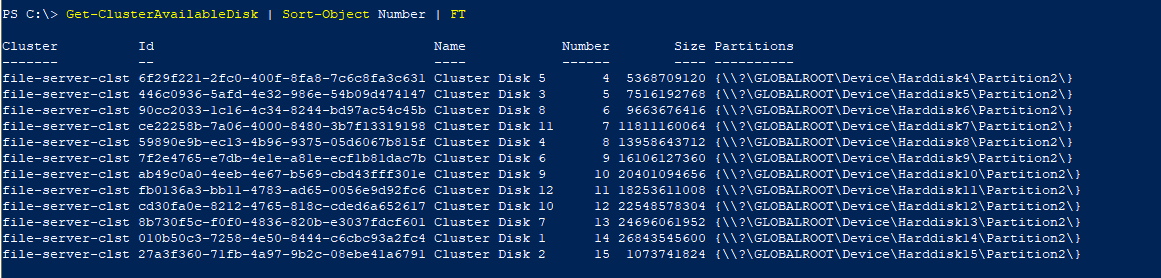
I am attempting to rename multiple cluster available disk on Windows Server 2022 server. Cluster Available Disk will be added as a mount point inside a single drive.
Now, I want to rename them in bulk based on their file system label . I cannot find a away to tie together a disk i.e. ‘Cluster Disk X‘ with any other attribute i.e. Disk Number , ID etc. via PowerShell command in such a that If Disk Physical Number is 5 then then its label/name inside Available Cluster Storage should be ‘XXXX’ file system label or match its volume label as shown earlier.
Is there a way to rename in bulk Cluster Available Disk based on its file system label.
There is an Access Modifiers but it is a manual process. I have to manually match ‘Cluster Disk X‘ with Disk Number to assign a label. I have to match physical disk number with ‘‘Cluster Disk X‘ as shown below.
It’s surprisingly difficult to map volumes to disk/partition. Here is the best thing I could come up with over the years. (I used to just make best guess effort based on disk capacity)
With the limited info you get from the cluster side, I think the Number can be correlated to the DiskIndex of the logical disk. If so, the VolumeName should be what you want to rename it to.
See if this seems to match on your end
$available = Get-ClusterAvailableDisk

foreach($disk in $available){
    $current = $output | where diskindex -eq $disk.number

    Write-Host "Cluster disk '$($disk.Name)' is volume '$($current.VolumeName)'" -ForegroundColor Cyan
}
If so you can grab this info before adding them to the cluster to use for renaming after.
Looking at this section of the script I found that it may not work.
$available = Get-ClusterAvailableDisk

foreach($disk in $available){
    $current = $output | where diskindex -eq $disk.number

    Write-Host "Cluster disk '$($disk.Name)' is volume '$($current.VolumeName)'" -ForegroundColor Cyan
}
I will explain the reason why. Get-ClusterAvailableDisk does not work once I add all disks inside Failover Cluster Manager and If ran again it draws blank. Following output shows disks NOT added into Failover Cluster Manager yet.
PS C:\> Get-ClusterAvailableDisk | Sort-Object Number | FT -AutoSize

Cluster          Id                                   Name            Number        Size Partitions
-------          --                                   ----            ------        ---- ----------
file-server-clst 90cc2033-1c16-4c34-8244-bd97ac54c45b Cluster Disk 8       1  9663676416 {}
file-server-clst ce22258b-7a06-4000-8480-3b7f13319198 Cluster Disk 11      2 11811160064 {}
file-server-clst 59890e9b-ec13-4b96-9375-05d6067b815f Cluster Disk 4       3 13958643712 {}
file-server-clst 7f2e4765-e7db-4e1e-a81e-ecf1b81dac7b Cluster Disk 6       5 16106127360 {}
file-server-clst fb0136a3-bb11-4783-ad65-0056e9d92fc6 Cluster Disk 12      6 18253611008 {}
file-server-clst ab49c0a0-4eeb-4e67-b569-cbd43fff301e Cluster Disk 9       7 20401094656 {}
file-server-clst cd30fa0e-8212-4765-818c-cded6a652617 Cluster Disk 10      9 22548578304 {}
file-server-clst 8b730f5c-f0f0-4836-820b-e3037fdcf601 Cluster Disk 7      10 24696061952 {}
file-server-clst 010b50c3-7258-4e50-8444-c6cbc93a2fc4 Cluster Disk 1      11 26843545600 {}
file-server-clst 27a3f360-71fb-4a97-9b2c-08ebe41a6791 Cluster Disk 2      12  1073741824 {}
file-server-clst 446c0936-5afd-4e32-986e-54b09d474147 Cluster Disk 3      13  7516192768 {}
file-server-clst 6f29f221-2fc0-400f-8fa8-7c6c8fa3c631 Cluster Disk 5      14  5368709120 {}
When I add them into Failover Cluster Manager, they disappear from Get-ClusterAvailableDisk output. It only appears in the following command then
PS C:\> Get-ClusterResource | Sort-Object Name

Name                     State   OwnerGroup        ResourceType
----                     -----   ----------        ------------
Cluster Disk 1           Online  Available Storage Physical Disk
Cluster Disk 10          Online  Available Storage Physical Disk
Cluster Disk 11          Online  Available Storage Physical Disk
Cluster Disk 12          Online  Available Storage Physical Disk
Cluster Disk 2           Online  Available Storage Physical Disk
Cluster Disk 3           Online  Available Storage Physical Disk
Cluster Disk 4           Online  Available Storage Physical Disk
Cluster Disk 5           Online  Available Storage Physical Disk
Cluster Disk 6           Online  Available Storage Physical Disk
Cluster Disk 7           Online  Available Storage Physical Disk
Cluster Disk 8           Online  Available Storage Physical Disk
Cluster Disk 9           Online  Available Storage Physical Disk
Running following command draws blank
Get-ClusterAvailableDisk | Sort-Object Number | FT -AutoSize
Therefore, the snippet I pasted in this response cannot work and problem of finding a relationship between Disk number and its association inside following command draws blank too which leads to unable to label disk inside Failover Cluster by matching its Disk number etc.
Get-ClusterResource | Sort-Object Name
I hope that I am able to communicate my understanding .