Read Data from .csv

Hi,

I am a beginner to PS and I have a file that I get from a vendor at my job that needs to be cleaned up and I am stuck on the final part of this problem. I have used four other PS commands to get the data where I need it, but now I need this last part and can’t find a way to do it.

I have a 4 column .csv that has data on each row, but in column 3, I need that data to replicate in column 3 until it gets to a new value in column 3. Then I would like PS to grab that new value and do the same process, replicate until it hits a new value. Below is what the data looks like and below that is what I am looking to achieve with some Pro’s help!

Current Data

1234,M00001.tif,99999,2
1234,M00002.tif,2
1234,M00003.tif,2
1234,M00004.tif,2
1234,M00005.tif,88888,2
1234,M00006.tif,2
1234,M00007.tif,2
1234,M00008.tif,2

Desired Build

1234,M00001.tif,99999,2
1234,M00002.tif,99999,2
1234,M00003.tif,99999,2
1234,M00004.tif,99999,2
1234,M00005.tif,88888,2
1234,M00006.tif,88888,2
1234,M00007.tif,88888,2
1234,M00008.tif,88888,2

Billy,
Welcome to the forum. :wave:t4:

If that’s really the original format you have it’s actually not a valid CSV file as because it has different amount of columns´on some rows. The most reliable and professional solution would be to get a proper standard compliant CSV from your vendors.

If you insist to clean up that mess yourself you will have to read the file in plain text mode with Get-Content and treat every single line individually with an if statement according to the actual condition.

Hi Olaf,

Thank you for the response. I am trying to follow what you mean about the .csv? I am viewing the .csv with Notepad++. The original .csv had 26 columns and I was able to strip out the data that I don’t want and leave it to the 4 columns that you saw above. When the vendor sends that the 99999 number is a Employee ID and that 3 column only had that ID on the first row of data. I need to replicate that 9999 number in the file until it gets to the 88888. When it get to the 88888, I need it to replicate the data until it finds a new number then stop when it reaches the last row.

The system that I support at my job, will use that 99999 number to combine the .tifs, until it sees a new number (88888) and then continue on.

I hope this was a better description.

BD

Your sample data only has 4 columns in two of the lines. The rest are 3 columns

1 Like

To be a valid CSV file a CSV file has to have the same amount of columns on ALL rows.

So the following CSV would be invalid:

1234,M00001.tif,99999,2
1234,M00002.tif,2
1234,M00005.tif,88888,2
1234,M00006.tif,2

… while this would be valid:

1234,M00001.tif,99999,2
1234,M00002.tif,,2
1234,M00005.tif,88888,2
1234,M00006.tif,,2

On ALL rows?

If you have code to show you should share it - formatted as code please - so we can move forward way faster than describing everything in prose. :wink:

I am sorry it looks as if I accidentally didn’t transpose the commas right. There should be two commas in front of the 2 when there is no value in column 3. Here is what the Current Data should be. I am wondering it got edited out by the post?

Current Data
1234,M00001.tif,99999,2
1234,M00002.tif,2
1234,M00003.tif,2
1234,M00004.tif,2
1234,M00005.tif,88888,2
1234,M00006.tif,2
1234,M00007.tif,2
1234,M00008.tif,2

They are being stripped every time I post them, so I hope my description in my last post helps.

BD

Olaf,

Do you want the commands I have used to strip the original file down? Just want to make sure that I am following you ask. Thank you and krzydoug for the responses.

BD

You have to format your code as code!!!

When you post code or sample data or console output please format it as code using the preformatted text button ( </> ). Simply place your cursor on an empty line, click the button and paste your code.
Thanks in advance

Yes please. :wink:

And you should fomrat your code as code, please.

Hi,

Sorry for the delay. Here is the sample of what my data looks like from the third party vendor.

"LBNumber","FileName","EPInfo","FileType"
20220111,5,N,,1234,4,,1,1,1,1,M,M00001.tif,"Letter",,"Resume","UH",,,,,99999,,"BLUE","TEST",,,
20220111,5,N,,1234,4,,1,1,,1,M,M00002.tif,"Letter",,,"UH",,,,,,,,,,,
20220111,5,N,,1234,4,,1,1,,2,M,M00003.tif,"Letter",,,"UH",,,,,,,,,,,
20220111,5,N,,1234,4,,1,1,,3,M,M00004.tif,"Letter",,,"UH",,,,,,,,,,,
20220111,5,N,,1234,4,,1,2,1,1,M,M00005.tif,"Letter",,"Onboarding",,,,,88888,,"JOHN","DOE",,,
20220111,5,N,,1234,4,,1,2,,1,M,M00006.tif,"Letter",,,UH,,,,,,,,,,
20220111,5,N,,1234,4,,1,3,1,1,M,M00007.tif,"Letter",,,UH,,,,,,,,,,
20220111,5,N,,1234,4,,1,3,,1,M,M00008.tif,"Letter",,,UH,,,,,,,,,,

I am looking for help getting the 99999 down to where the 88888 begins, then storing the 88888 and replicating it down until it gets to a new value. I need this type of logic to be done until it gets to the last row.

Don’t make fun of my novice code, but below is the commands I have used to get me this far. Thanks again for walking me through the this and the rules of the forum. I don’t do this often.

Import-Csv C:\column\testfilev2.csv | select FileName,FileType | Export.Csv -Path c:\column\new.csv -NoTypeInformation
Import-Csv C:\column\testfilev2.csv | ForEach-Object {$_.FileType = "2"; $_} | Export-Csv C:\Column\newtestfile.csv -NoTypeInformation
Get-Content C:\column\newtestfile.csv | Select-Object -Skip 1 | Set-Content C:\column\nofirstrow.csv
Get-Content C:\column\nofirstrow.csv |Select-Object -SkipLast 1 | Set-Content C:\Column\nolastrow.csv

I assume you editted them heavily. Now they are again invalid CSV data unfortunately. And seemingly inconsitent as well … there seems to be a comma missing in row 6 after “Onboarding”.

So I corrected them slightly to be at least usable for an example. Since the data do not have a valid header row I created numbered headers and skipped the first row:

$Header = 1..28 | ForEach-Object {"Clmn$($_)"}

$CSVInputData = @'
"LBNumber","FileName","EPInfo","FileType"
20220111,5,N,,1234,4,,1,3,1,1,M,M00007.tif,"Letter",,,UH,,,,,,,,,,
20220111,5,N,,1234,4,,1,1,1,1,M,M00001.tif,"Letter",,"Resume","UH",,,,,99999,,"BLUE","TEST",,,
20220111,5,N,,1234,4,,1,1,,1,M,M00002.tif,"Letter",,,"UH",,,,,,,,,,,
20220111,5,N,,1234,4,,1,1,,2,M,M00003.tif,"Letter",,,"UH",,,,,,,,,,,
20220111,5,N,,1234,4,,1,1,,3,M,M00004.tif,"Letter",,,"UH",,,,,,,,,,,
20220111,5,N,,1234,4,,1,2,1,1,M,M00005.tif,"Letter",,"Onboarding",,,,,,88888,,"JOHN","DOE",,,
20220111,5,N,,1234,4,,1,2,,1,M,M00006.tif,"Letter",,,UH,,,,,,,,,,
20220111,5,N,,1234,4,,1,3,1,1,M,M00007.tif,"Letter",,,UH,,,,,,,,,,
20220111,5,N,,1234,4,,1,3,,1,M,M00008.tif,"Letter",,,UH,,,,,,,,,,
'@ -split "\n" | 
    Select-Object -Skip 1 |
        ConvertFrom-Csv -Header $Header

And since you have a lot of empty columns and columns with the same value in it I picked some columns to play with.

$PropertyList = 'Clmn5', 'Clmn9', 'Clmn10', 'Clmn11', 'Clmn16', 'Clmn17', 'Clmn24', 'Clmn25', 'Clmn22'

Now we can output them to the concole to have a visual check:

$CSVInputData | 
    Select-Object -Property $PropertyList |
        Format-Table -AutoSize

… that looks something like this:
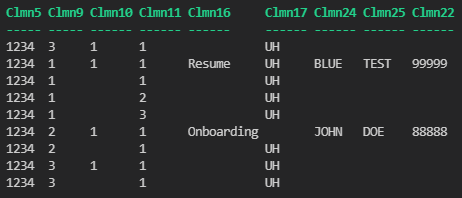
PS-Output

If your data starts with a data set without the value you want to continue down the column you should have an initial value:

$CurrentValue = 'n/a'

Now we check in each single row the cell Clmn22 for a value and if it has one set it as the new $CurrentValue and output it as it is. If it does not have a value insert the $CurrentValue instead and output this.

$CSVInputData | 
    Foreach-Object {
        if ($_.Clmn22) {
            $_
            $CurrentValue = $_.Clmn22
        }
        else {
            $_.Clmn22 = $CurrentValue
            $_
        }
    } |
        Select-Object -Property $PropertyList |
            Format-Table -AutoSize

And of course we pick our properties of interest and output them to the console.

Now it looks like this:

PS-Output1

As you can see we do not need a lot of intermediate CSV files. We can work with the data we saved to a variable in the first place.
And of course for your production version you would use Export-Csv instead of Format-Table at the end of your pipeline.

Olaf,

Thank you so much for pointing me in the right direction. I am really sorry about the data. The live data has personal info in it and I wanted to take that out to avoid the risk of sharing that data on the internet. The data also has so much junk in it that my system doesn’t need and that is one reason why I am trying to strip it down to just those four columns. I only need those 4 columns to get the data and images into my system that I am the Admin for. I will test out your code and see if I can get the results that I desire. Thank you again for being so willing to help me and work with my inconsistent data. It really means a lot to me.

Hi,

I think this is really where I fall off as a scripting newbie. I entered your code into Notepad++ as you have it listed and I can’t get it to return anything. All I get is a black box (command prompt window) to flash. I can’t see what the error is. Thoughts on how I shall proceed. Thanks again Olaf.

BD

To develop PowerShell code you should use a proper IDE like the PowerShell_ISE or Visual Studio Code. There you can paste all the code I posted, select one line or a complete scriptblock and run the selected code with hitting <F8>. It’ll even help you with syntax highlighting, Intellisense and code completion and many other things. If you dont want that you could still copy each individual snippet I posted and paste them one after the other to the same PowerShell console session and watch what happens.

Hi Olaf,

I took your first block of code the one that starts with $Header in both the Console and the ISE and it didn’t return anything. Obviously, this is work for you. Can I attach a screenshot in this thread?

BD

I just pasted it all in the ISE and I can see the same results that you got. Ignore me. :smile: I will keep testing, but I think the n/a will throw off my data.

BD

Olaf,

This looks amazing now that I have it exporting to a .csv. Is there a way to have the script remove the 3 lines of data from the top. My system can only import the items that come after the top three lines. Will ones with n/a always be at the top?

typ#TYPE Selected.System.Management.Automation.PSCustomObject
"Clmn5","Clmn13","Clmn22"
"1234","M00007.tif","n/a"
"1234","M00001.tif","99999"
"1234","M00002.tif","99999"
"1234","M00003.tif","99999"
"1234","M00004.tif","99999"
"1234","M00005.tif","88888"
"1234","M00006.tif","88888"
"1234","M00007.tif","88888"
"1234","M00008.tif","88888"

Thanks,

BD

I am wondering if I could just add Select-Object -Skip 3 somewhere?

BD

The first line is there because you forgot to provide the parameter -NoTypeInformation for your Export-Csv command.
The second line are the headers of the CSV data. Every standard compliant tool should handle them with no issue.
And the third line depends on your input data. It might not be there. If it is you may filter it out before exporting your data to with a Where-Object

1 Like