It seems like you’re glossing over some basic fundamental understanding stuff here. You also need to format your code when you post so that it’s readable.
All you’re really doing in one script is making an empty file. The second script is unnecessary calling a separate PowerShell process to then run the WMIC command and pipe its output to a file. You could just skip the first script and change the filename on the second to be the hostname.
Generally I’m not a big fan of mixing native commands (WMIC) and Powershell unless I have to so I would suggest you keep researching on how to inventory installed software via Powershell, and then also if there are better tools for this like MECM, Intune etc.
I cannot install any additional tools on these systems. I’m stuck with whatever install on them. I could use Python to get around this problem easy but I’m not allowed to even install Python, that is why I have find other way how to do it. it seems most popular is PowerShell WMIC solution. The problem is I have no experience with the PS, I tried it couple of years ago and I did not like it at all.
Anyway, is anybody here can help me (knows how) to fix this? Thank you.
In the vast majority of the cases you’re not the very first one with a given task. So you don’t have to re-invent the wheel for something what others already solved for themselfs and then shared with the world. Especially for creating an inventory by PowerShell there are probably hundrets of examples out there you just have to adapt slightly to your particular needs. So please use your prefered internet search engine and look for “Powershell inventory WMI”.
To clarify, the tools i suggested aren’t things you install on the endpoint, but rather tools you use Org-wide to mange devices, updates, software, preferences etc.
What Olaf is saying is what you’re going to find pretty much everywhere online: no one is going to write something for you. That’s what fiverr.com is for.
Additionally it’s hard to believe that no one else has used Powershell to inventory software on a Windows machine. I think you simply just need to search it, or ask ChatGPT, and go from there.
well sure, that’s what most discussion boards are: discussion. You specifically asked for help, but put it in the “Uncategorized” area when there’s a more specific “Powershell Help” category. Not that it really matters but it’s kind of reflective of the effort put in here.
When people ask for help and show their work and show effort, it becomes a collaborative discussion and some pretty cool stuff happens here. But there’s also the other end of the spectrum (I would say more often seen on Reddit) where people make posts asking for help when a lot of times they could have found that help by just searching the forum itself, or greater internet.
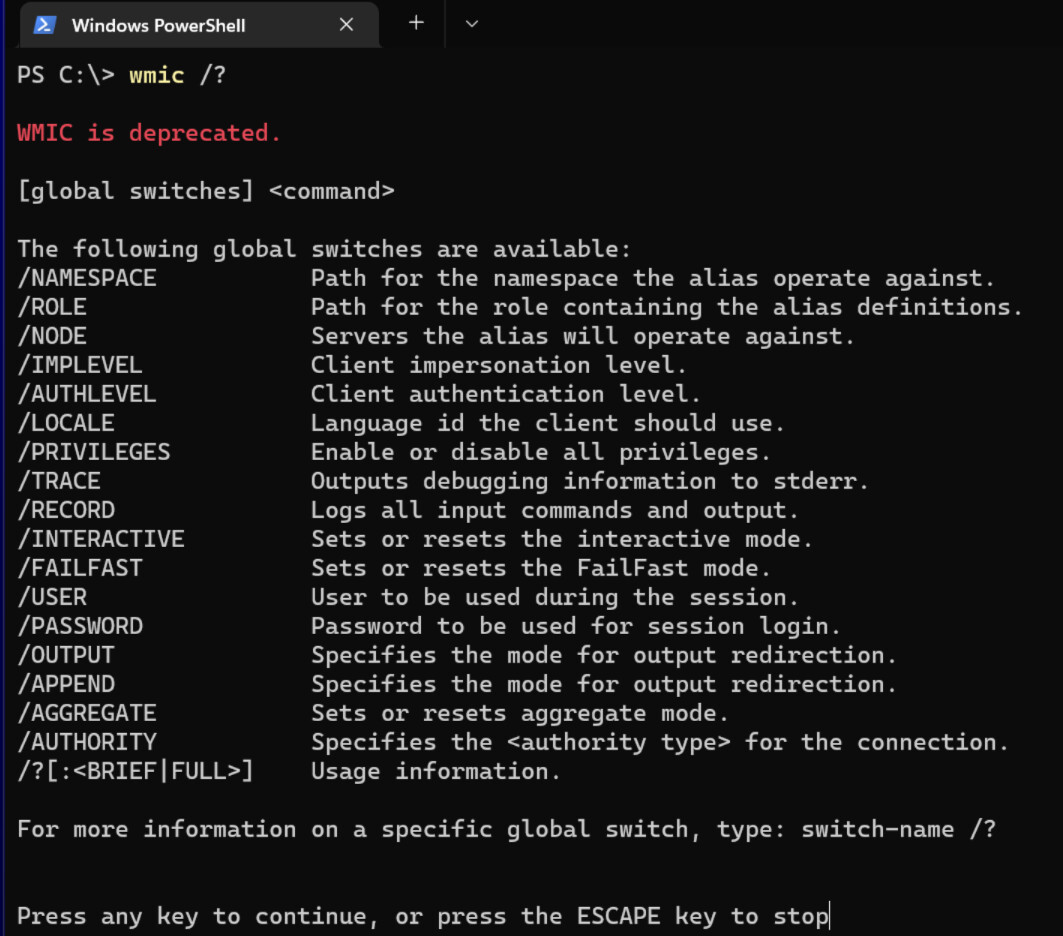
Your particular problem, though understandably not apparent, is that you’ve got a mixture of Powershell a “native commands”, specifically the WMIC command. Note:
I’m not sure that the syntax from your 2nd script example would ever actually work, but from briefly reading the help info from the WMIC command and playing with it briefly in a VM i’ve got this, ran it once and it seemed to accomplish the goal:
$Outfile = "C:\Temp\$($Env:COMPUTERNAME).txt"
wmic product get name,version >> $Outfile
Run that in Powershell or save it as a .ps1 and execute it as a Powershell script.
The first line defines a string variable with the path being C:\Temp\YourComputerName.txt.
The second line is not technically powershell but just the WMIC command syntax you provided with output redirection to that string variable. The double “greater than” symbols means write to file and append to existing content. If you do a single “greater than” symbol it will overwrite. Either way the file will be created automatically if it doesn’t already exist.
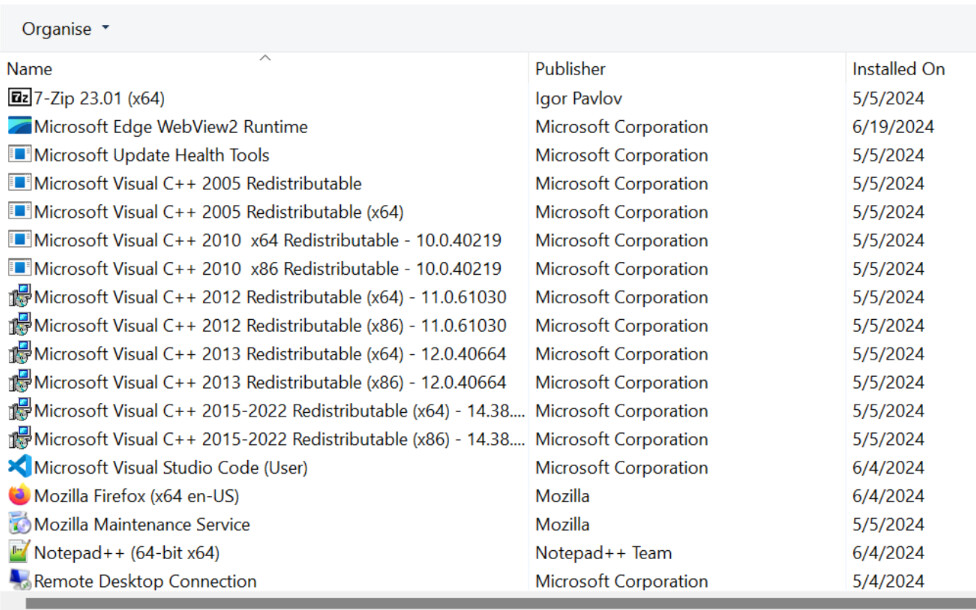
EDIT: it’s worth noting that the WMIC command is not showing all of the installed software. On the VM from my above example it’s not reflecting that Firefox is installed, even though it is, as well as other software
There’s an oldie-but-a-goodie blog post that goes in to more detail about what it really takes to even begin getting an inventory of installed software via Powershell here:
Which is why I mentioned other tools (like MECM) because I’ve already gone down this rabbit hole at work and found that we had at least 3 other tools that could more reliably get me a software inventory and required way less work.