Problem: Files from a MacOS with umlauts or special characters in the file name can be read under Windows but cannot be processed with scripts (PowerShell, WScript).
Umlauts or special characters are for example ‘öäüÜÖÄööäüéàéèéà’.
Reason: Mac OS uses UTF NFC in file names.
Under UTF8 NFC, these characters, for example ‘ö’, are split into two characters, firstly the base ‘o’ (x6F) and then ‘¨’ (xA8).
All other operating systems (Windows, Linux) use ISO8859-1 or Windows 1252.
Here the ‘ö’ is displayed as xF6.
Windows itself can handle UTF8 NFC. The user does not notice this.
The file details can be read from the directory using PowerShell or WScript. However, reading and renaming is not possible.
Under Linux there are tools for this, for example ‘convmv’.
Under PowerShell I have unfortunately not found a way to rename or read such files.
Hello Hans. Welcome to the forum. Unfortunately, I do not have a mac to test with. Perhaps you can show what you’ve tried? Also share any errors you received. Generally speaking, you want to use the literalpath parameter of the *-Item cmdlets when dealing with special characters.
Hi Doug
Thanks for the reply.
Testing without a Mac is not a problem. I also work without a Mac, but I
keep getting files with these characters. Umlauts are normal in
German-speaking countries. As a private supporter, I have several users
with the same problems, so this is important for me. I enclose two
(three: Docx and pdf) test examples. One is a normal case and the second
was specially created by my son (Mac user).
Unfortunately, not all users are aware of Mac’s recommendation not to
use special characters.
I will take a closer look at the comment regarding literalpath.
Thanks
Hans
(Attachment Créme Günter von und zu Rüfenacht äüöáàèâî.docx is missing)
(Attachment Créme Günter von und zu Rüfenacht äüöáàèâî.pdf is missing)
(Attachment Protokoll-Höck 2024-10-03-ecode.pdf is missing)
Hi Doug
Thanks for the reply.
Testing without a Mac is not a problem. I also work without a Mac, but I keep getting files with these characters. Umlauts are normal in German-speaking countries. As a private supporter, I have several users with the same problems, so this is important for me. I enclose two (three: Docx and pdf) test examples. One is a normal case and the second was specially created by my son (Mac user).
Unfortunately, not all users are aware of Mac’s recommendation not to use special characters.
I will take a closer look at the comment regarding literalpath.
Thanks
Hans
Second attempt:
The sending of attachments with special characters is rejected by my provider. Here with Cloud:
I can’t replicate the problem with your test files.
The special characters do display as two characters in the legacy console host, but there are no problems renaming them, either when piping to Rename-Item or when specifying the name.
PS E:\Temp\Special> Rename-Item '.\Cre´me Gu¨nter von und zu Ru¨fenacht a¨u¨o¨a´a'e'a^i^.pdf' -NewName foo.pdf
PS E:\Temp\Special> Get-ChildItem .\foo.pdf


    Directory: E:\Temp\Special


Mode                 LastWriteTime         Length Name
----                 -------------         ------ ----
-a----        13/06/2025     10:23          83683 foo.pdf
Using Windows Terminal, the special characters display as a single character.
PS E:\Temp\Special> Rename-Item '.\Créme Günter von und zu Rüfenacht äüöáàèâî.docx' -NewName foo.docx
PS E:\Temp\Special> Get-ChildItem .\foo.docx

    Directory: E:\Temp\Special

Mode                 LastWriteTime         Length Name
----                 -------------         ------ ----
-a---          13/06/2025    10:23          33319 foo.docx
Can you give us an example of what you’re trying to do that’s not working? Please include any error messages.
And BTW: The file names just look normal to me. There is no issue with the umlauts on my system. They are shown correctly. There’s actually no need to rename them.
Hello
Here are the promised documents with script and a SnapShot.
Basis: The script is a mini-extract from my standard backup software.
I have expanded it over many years.
It runs smoothly for various support customers.
This eliminates the restrictions of xcopy and RoboCopy.
Procedure:
Phase 1: The defined folders are scanned for files that are to be backed up.
The path of each file is written to a temporary file.
Phase 2: The files noted in the temporary file are backed up.
In reality, phase 2 does not run with PowerShell, but with WScript. Scanning in phase 1 is much more efficient under PowerShell.
Items 2 + 3 are important.
Here, 2 versions of the replace are tried, once with the simple ‘ü’ and then with the UTF NFC pair ‘u¨’.
In the SnapShot script run, at Rec 3, you can see in lines Deb04 + Deb05 that neither of the two variants is successful.
This means that copying this file also causes an error.
Could you please go back, edit your post once again and fix the formatting of your code?
When you post code, sample data, console output or error messages please format it as code using the preformatted text button ( </> ). Simply place your cursor on an empty line, click the button and paste your code.
Please fix the formatting in the forum, it’s unreadable. That link one day won’t work so the forum post needs to have the details. As far as your code, you failed to mention that you are manually building a text file with filenames and then reading that back before trying to use copy-item on each line. You have many levels that could be introducing problems. Instead of manually building a file with Add-Content, I recommend you collect your objects and then act on those directly. You can still save a copy to a file, but no reason to write it out to just read it back to use. Next tip, use pipeline binding or -Literalpath
# -LiteralPath
Copy-Item -LiteralPath $TextLine -Destination $NewPath

# pipeline binding example, it would be slightly different when working with your collected object, depending on how you build that object
$TextLine  | Copy-Item -Destination $NewPath
What restrictions of robocopy are you referring to? I know robocopy as one of the most reliable and robust file copy tools for Windows.
As Doug already mentioned - this is actually unnecessary and makes the script slower and more error prone.
That’s another source of potential errors. I don’t know what other steps you have to do but I highly recommend to stay with one scripting technology only.
If you’re looking for efficiency you should remove all Write-Host commands as they slow down your script a lot. If you need console output for debugging for example you should use Write-Debug or Write-Verbose. This way you can switch the console output on and off as needed.
Finally … instead of using several intermediate steps to replace some Umlaute you may use a function like this:
Hello
Thank you very much for your answer and the important tips, for example ‘Write-Debug’.
Of course, I am a beginner when it comes to PowerShell. It’s a long way from Assembler to PowerShell.
My backup app is ~98% written in WScript. Therefore I can’t change the nested structure: Master=WScript with effective directory scan module in PowerShell.
Being able to pass a file path in a text format from one system (PowerShell) to another (WScipt) is the A and O in computer science.
Normalized code in the file name is essential for this.
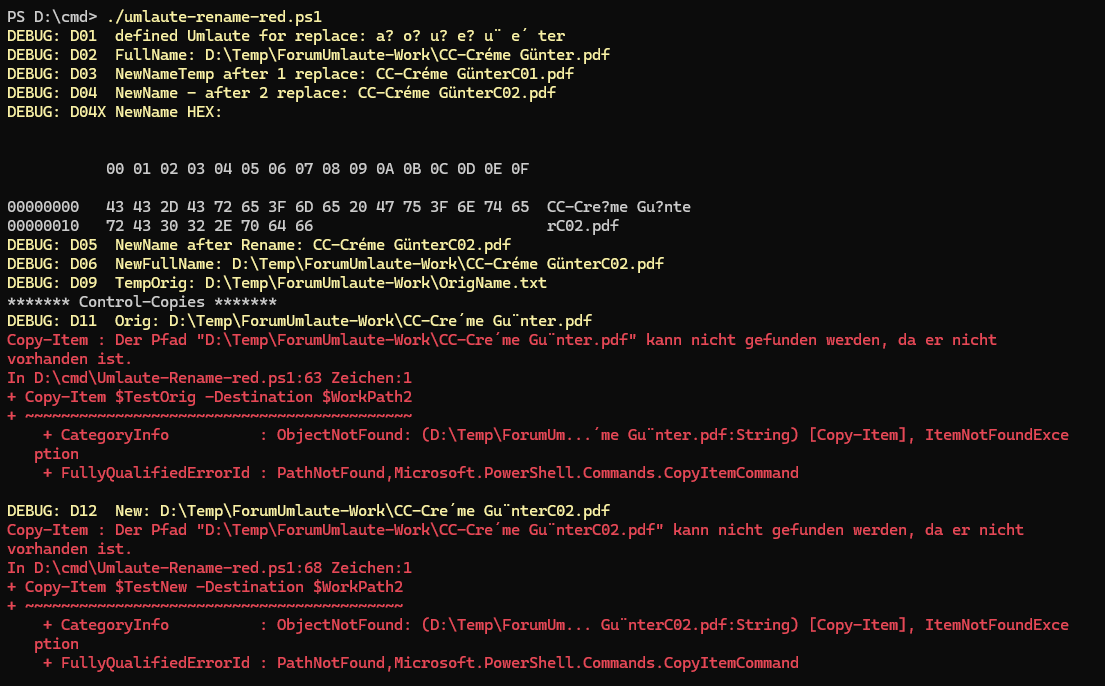
I have shortened and simplified the script and reduced the test to one file:
the two replace statements with the debugs D02 and D04 and
the 2 copy attempts with the refenced file names.
The normal replacements work, but those with the UTF-8 NFC codes (‘u¨’) do not
and also not with the strange ‘u?’ (see hex codes).
The first copy (D06) with the system-internal path name is ok.
The two with the names from the transfer file (Orig and New, D11+D12) generate errors.
Conclusion: It is basically only about the missing replace option for UTF-8 NFC.
Sorry for my bad English, it’s from DEEPL.
PS: to your question: The problems with ‘robocopy’ occur when embedding. The interpretation of the return codes is almost impossible. The parameters are very numerous but unfamiliar.
You have a lot going on there, and I’m not sure why you’re doing some of the things you’re doing.
For example, you seem to be querying why you have question marks, but 0x3F is the character code for a question mark so
$Rae = "a" + [char]0x3F
is just assigning a? to $Rae.
If you’re after the string a¨ then the assignment would be:
$Rae = "a" + [char]0xA8
I agree with @Olaf that you’re making this more complicated than it needs to be. Even with your latest post, I’m still not entirely clear what you’re trying to achieve.
That’s what you took as the important tip? … really?
Right now, you’re acting like a stubborn 6-year-old who refuses to use the pedals on his new bicycle. Instead, he continues to use it like a balance bike.
And that’s why this will probably be my last reply in this thread. I don’t like to spend my energy on someone unwilling or unable to learn and to change.
It might not be an easy task but it would benefit you and maybe even your colleagues or your company in the future since MSFT is heavily investing in PowerShell and not WScript.
And since PowerShell is way advanced and way easier to write than WScript it would probably be much less hard than you expect.
Since you’re dealing with Umlauten and Windows (and maybe even other operating systems as well) that can cause issues anyway. So it would be very beneficial if you hadn’t to do that in the first place.
I don’t know what exactly you mean with this but are you really sure about this? Sure - Windows traditionally had issues with non english characters in the past. But the situation has improved a lot over the last years. So the issues may be caused by your code or your system setup or the encoding of your script files. It wouldn’t be the first time that if you create the script file new with the proper encoding that the issues would be gone.
I say it again. You are overcomplicating this A LOT. Why don’t you try at least another approach since your approach is obviously fawlty?
I shared some code in my last answer. Give it a try! It will not hurt you. First you rename the files with Umlauten in their names. And then - with a new command - without using the old loop you copy the files where you need them.
Could you share a screenshot from your explorer showing this file? Does it really appear as CC-Cre´me Gu¨nter.pdf ?
It looks like you pass the wrong file name to your Copy-Item command. And because of that I’d suspect that you have an issue with your encoding somewhere along the way.
And in the screenshot the Debug D04 message shows that you still have the Umlaute in the file name.
If you want to debug your code I’d drop the steps actually working like the first rename since it seems to be irrelevant to your issue and only creates noise.
Why does it have to be the referenced file name? Again - I’d try to make it a two step process. First rename all the files you need to rename. Then - with a new command - copy all the files you need to copy.
And again … I’d suspect it is an issue only existing on your system.
If you feel more comfortable using your native language there are German forums with friendly and experienced PowerShellers. One of them is https://www.mcseboard.de
Hmmm …
Hmmm again …
I am using robocopy for more than 20 years. In my experience you only ever need a few of them and you actually don’t have to learn them since you can look them up if you need. And IMHO if you write a script it’s worth spending the effort.
One speed tip: Do not let robocopy output all file names. It slows it down a lot. So if you want spedd always include the options /nfl /ndl /np
Hello Olaf
Thank you very much for your comments. They are absolutely correct.
Unfortunately, I already have more than 50 years of system informatics with several system generations under my belt. I will never learn to balance on a unicycle again.
Nevertheless, I hope you can think again.
I’ve tried, with your help, to extract the core problem.
It seems that Powershell only works with ASCII 7 bit code in certain cases.
I have shortened the file name (Base) to 4 characters (CéGü.pdf)
and interpreted the characters individually. PowerShell delivers fake information with ‘Format-Hex’.
Hence Matt-Blumfield’s comment yesterday about the question mark.
Instead of the additional characters ‘¨’ and ‘’', the question mark ‘?’ and the hex code 3F (the largest value in ASCII 7-bit) are displayed.
See the marked characters in the SnapShot.
That said, looking back at the problem you described in your original post, the String class in Windows has a Normalize() method that can be used to combine the characters and I think this fixes the problem you’re having.
Tested in Windows PowerShell 5.1 and PowerShell 7.5.1 with your sample file:
Hi Matt
A huge THANK YOU for the tip with Normalize()!
I have been trying to find a solution for many months (with interruptions). Unsuccessful until today.
It is SUPER!
However, I still have an additional question:
Is there an easy way to test whether the string has non-normalized characters before renaming?
The tests for ‘?’ are not successful.
I don’t want to preemptively rename thousands of files during the backup and thus change the archive bits, for example.
Thank you!